
What Is the Difference Between Update, FixedUpdate, and LateUpdate?
These callbacks run on different rhythms: Update per rendered frame, FixedUpdate on the physics step, and LateUpdate after Update. Using the right rhythm makes input, physics, and cameras more stable. The pattern is to read input in Update, pass intent to FixedUpdate for Rigidbody movement, and follow the target in LateUpdate. This avoids jitter and frame-rate-dependent behaviour.
ASCENO / UNITY STUDY NOTES · 17
What Is the Difference Between Update, FixedUpdate, and LateUpdate?
Update, FixedUpdate và LateUpdate khác nhau thế nào?
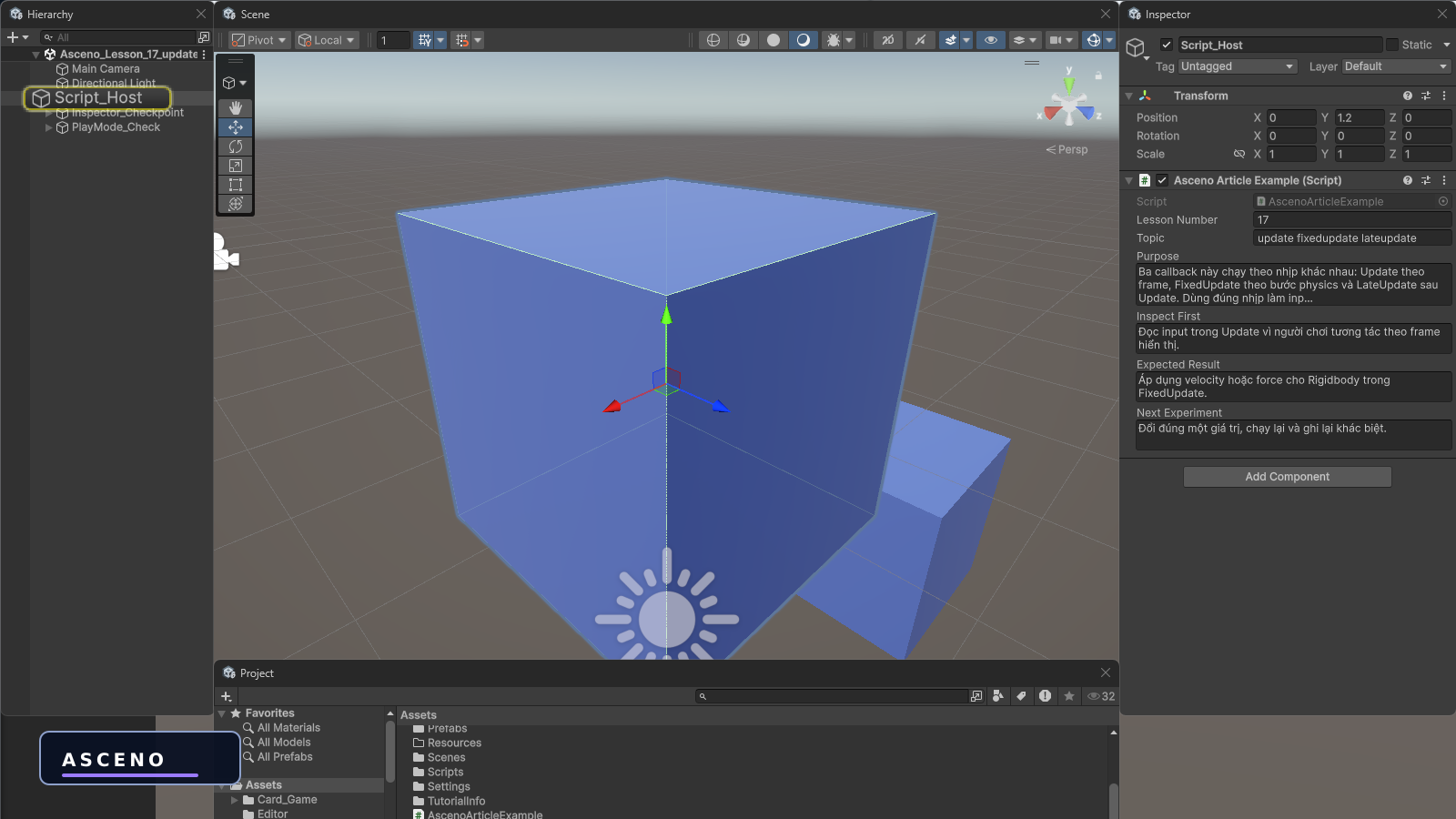
The lesson starts with a direct Unity screenshot so the practical action is visible. The nine following figures are language-neutral illustrations; the bilingual text below them carries the explanation. The main topic is update fixedupdate lateupdate. Figure 1 is practical evidence; figures 2–10 use only shapes, symbols, and visual relationships so they can remain unchanged across languages.
Learning goals
- Explain the concept with a model or data flow.
- Know exactly which Unity window to open.
- Predict the result before pressing Play and find evidence.
- Rebuild a small experiment and debug it methodically.
1. Hands-on practice in Unity
Open the test Scene, select the relevant object, and perform the action described in the lesson. This is a native Unity screenshot that shows where to begin; the steps and meaning are explained in the text below.
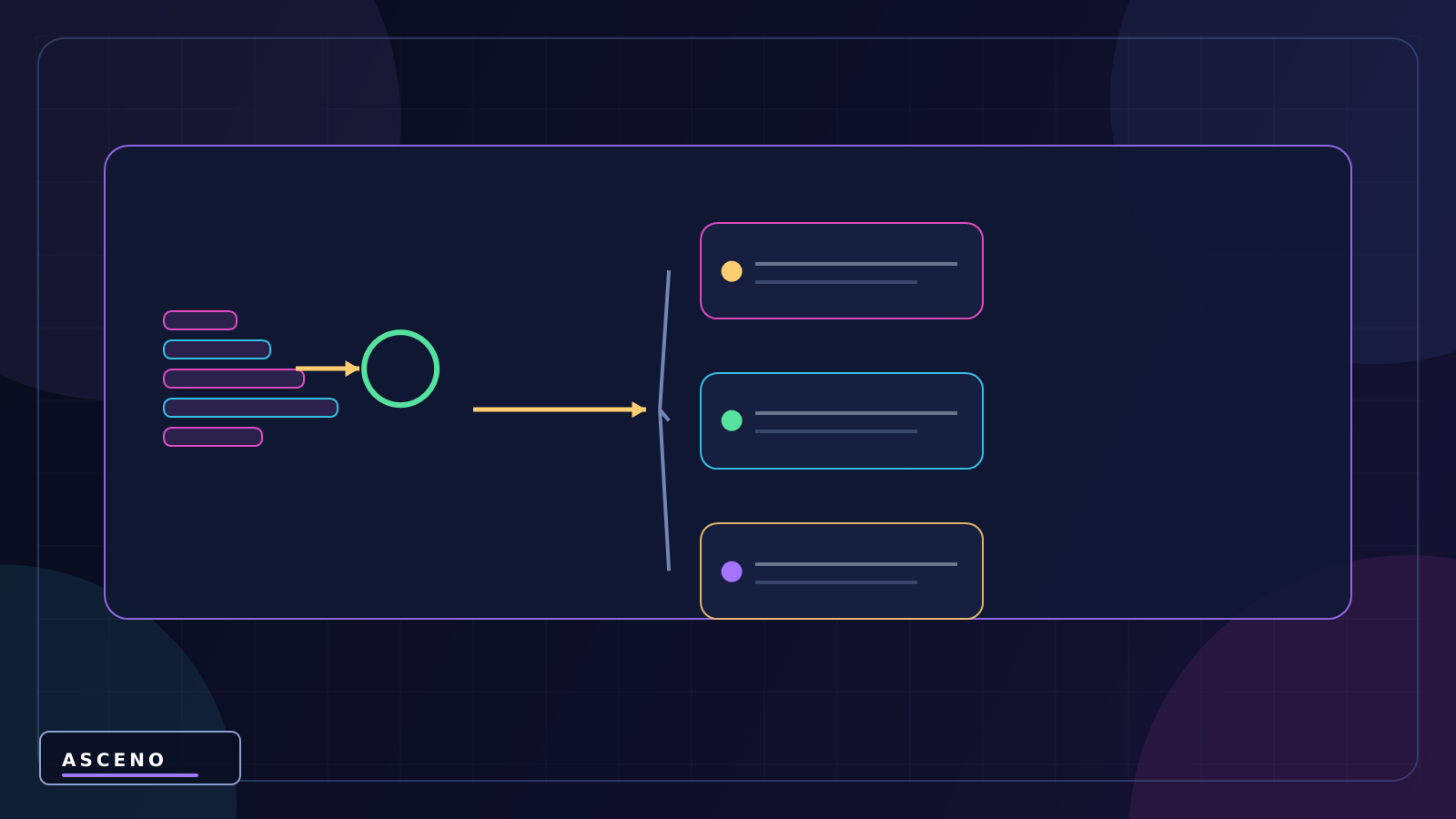
2. System illustration
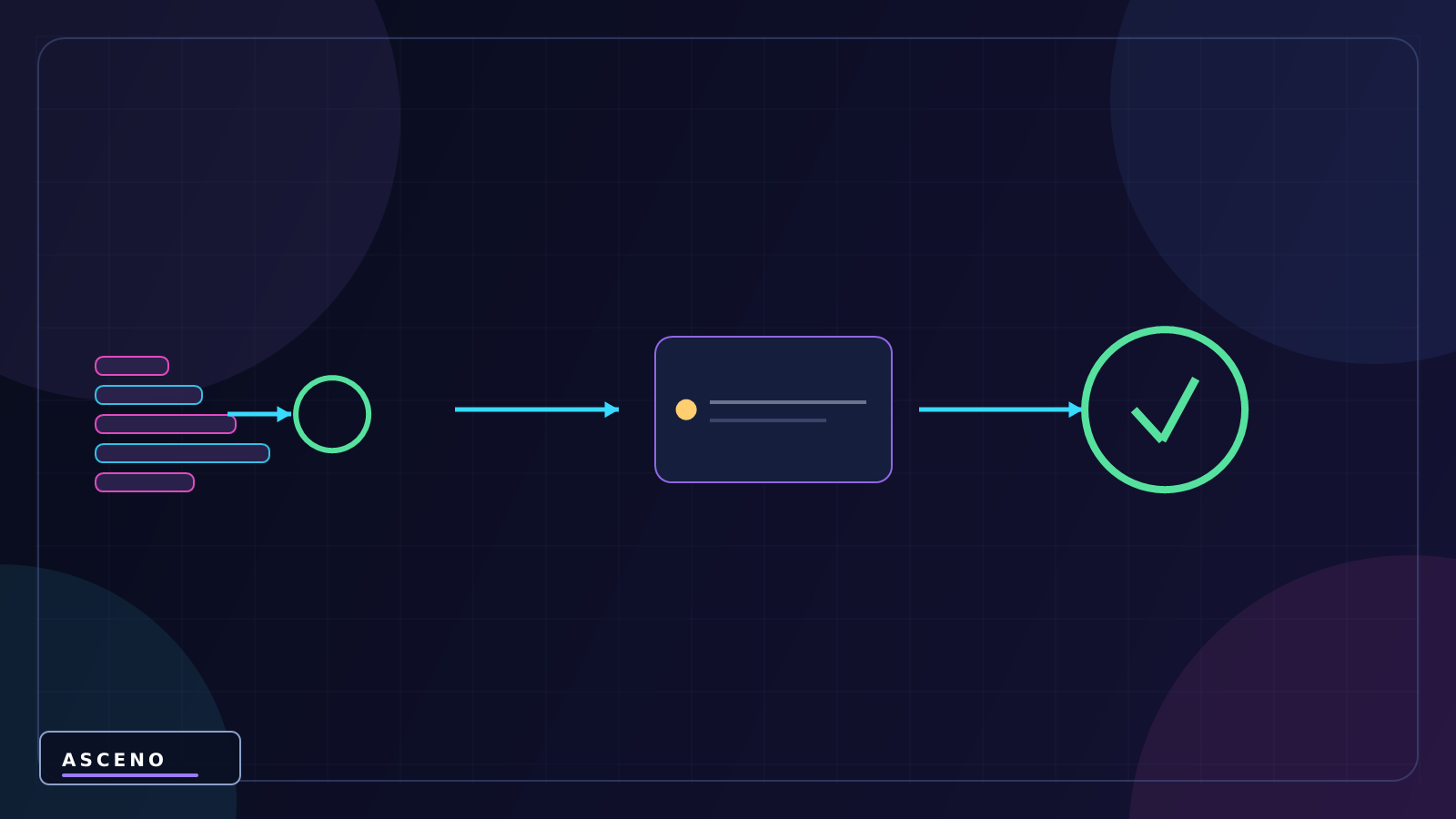
These callbacks run on different rhythms: Update per rendered frame, FixedUpdate on the physics step, and LateUpdate after Update. Using the right rhythm makes input, physics, and cameras more stable. The illustration below contains no language-specific text; read it together with this explanation and the concrete steps.
- update fixedupdate lateupdate | the lesson concept | read the focus and hands-on example | do not infer it from object colours
- Input/setting | the input data or configuration | record the value before changing it | do not change several things at once
- Result/evidence | what must be observed in the Scene, Game, Inspector, or Console | capture the correct panel | a polished image is not evidence
3. Cause → result illustration
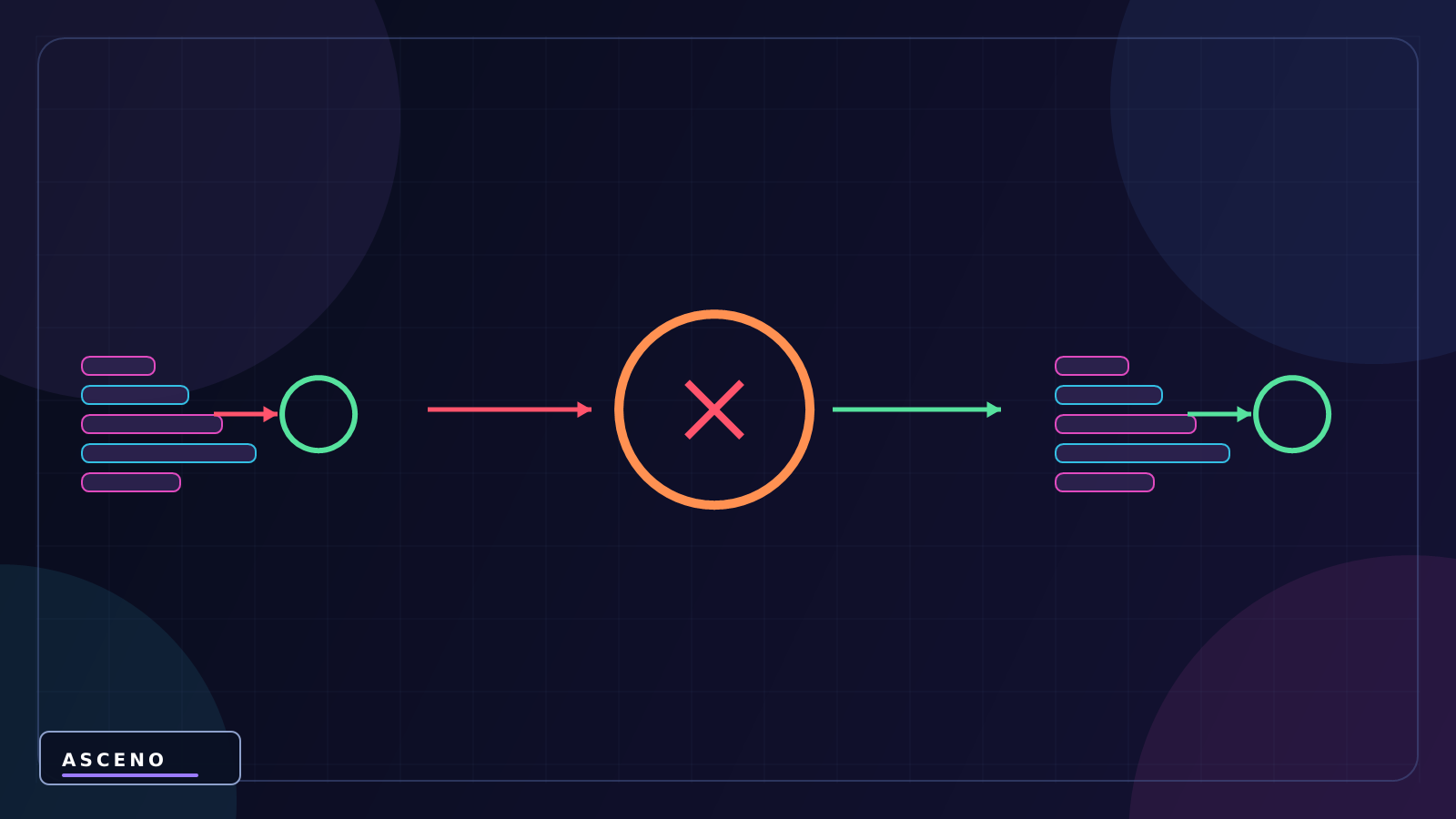
Read the arrow direction, relative position, and symbol changes as a causal relationship. The explanation below names each step in text rather than relying on words inside the image.
- Define the question
- Build a small test Scene
- Change one value or reference
- Press Play / run the action
- Read the correct panel
- Compare with the prediction
4. Sequence illustration
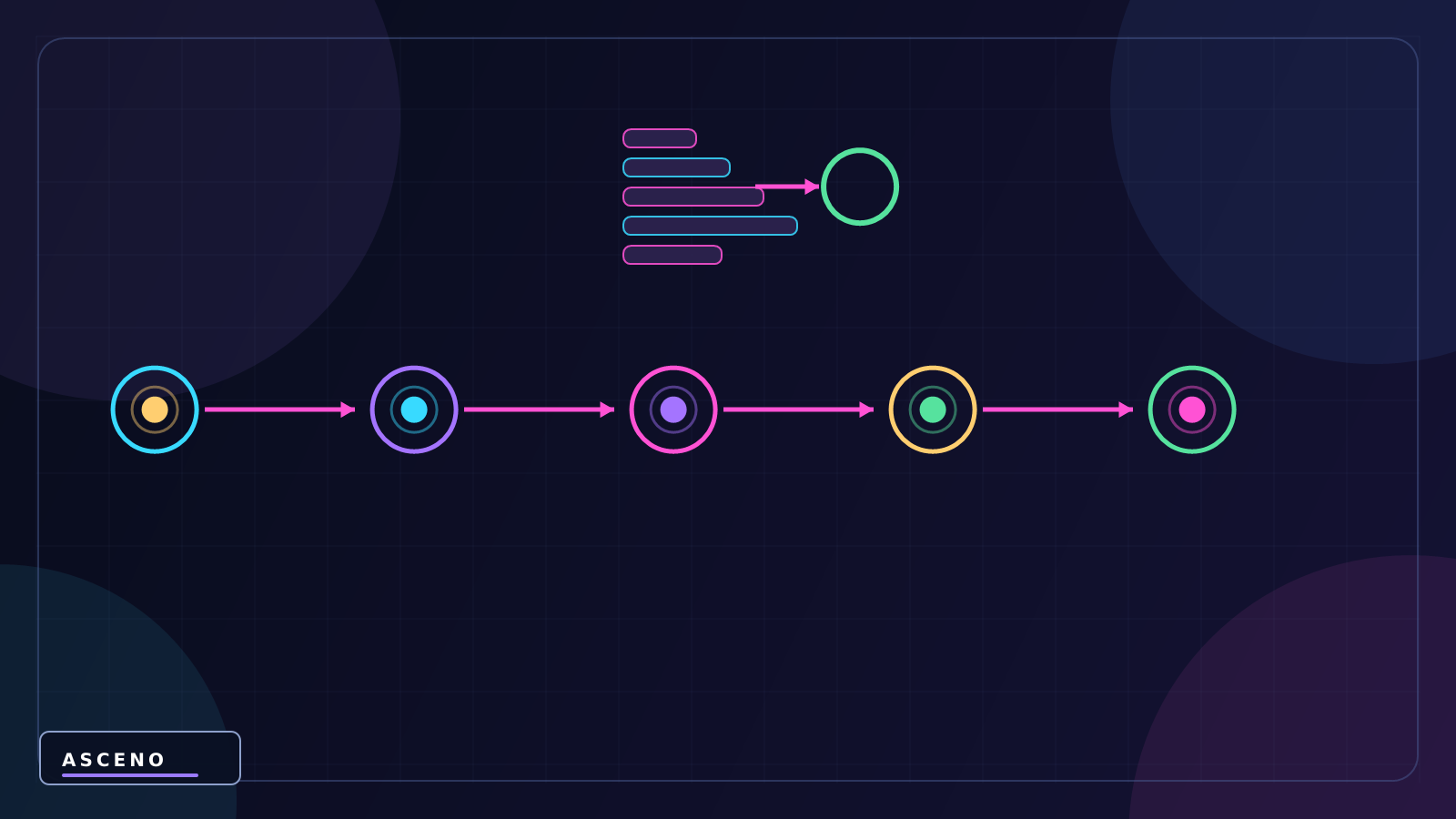
Open Unity, select the correct GameObject in the Hierarchy, inspect the script Component, then open the Console to see whether the method actually runs.
5. Object structure illustration
Read the object name in the Hierarchy first. If the name does not communicate its role, rename it in the test Scene; a screenshot is useful only when the reader knows what is selected.
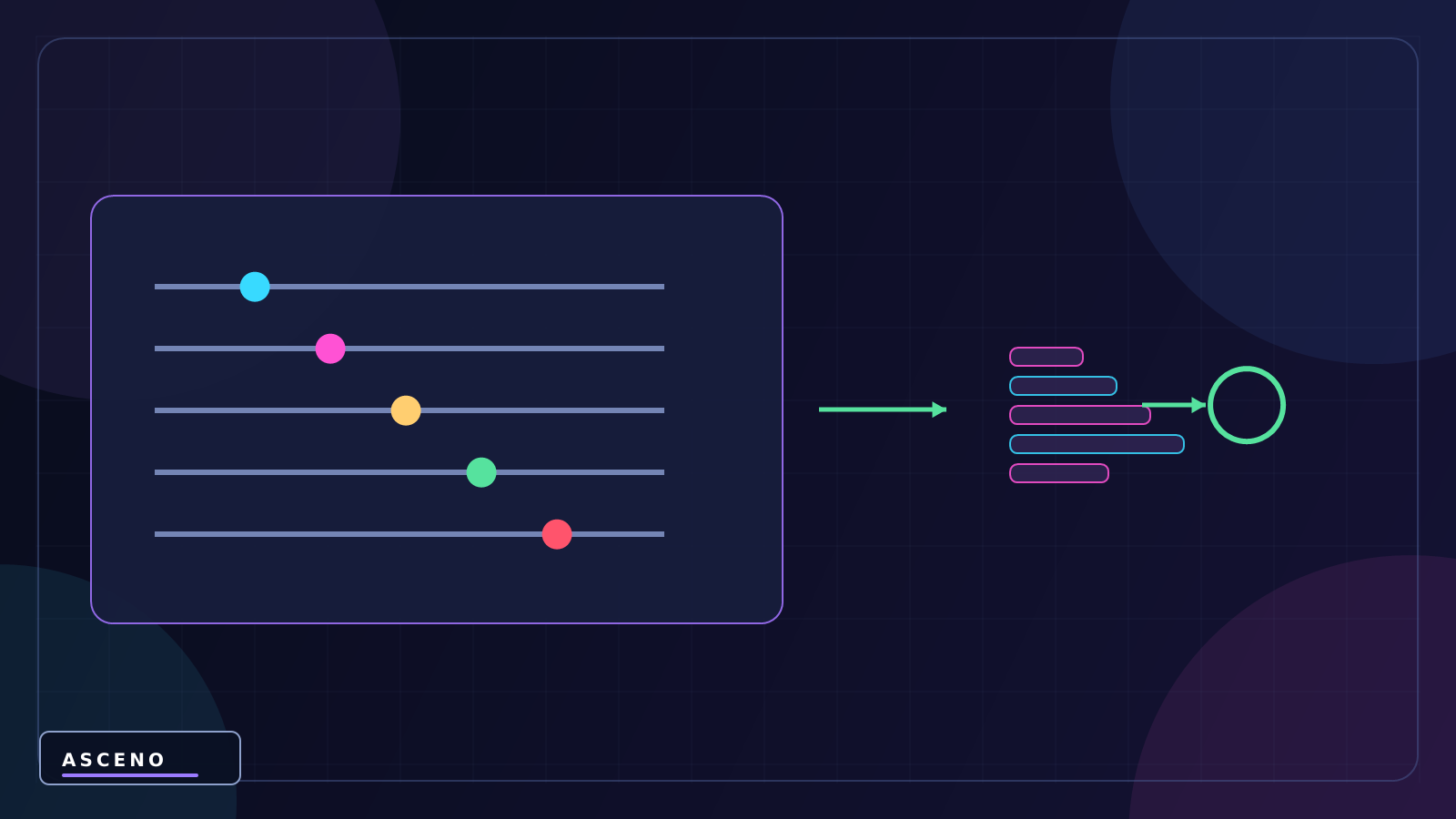
6. Configuration illustration
Select the object representing update fixedupdate lateupdate in the Hierarchy. Read Transform first, then find the relevant Component/field. Record the current value before changing it; Read input in Update because player interaction arrives with rendered frames
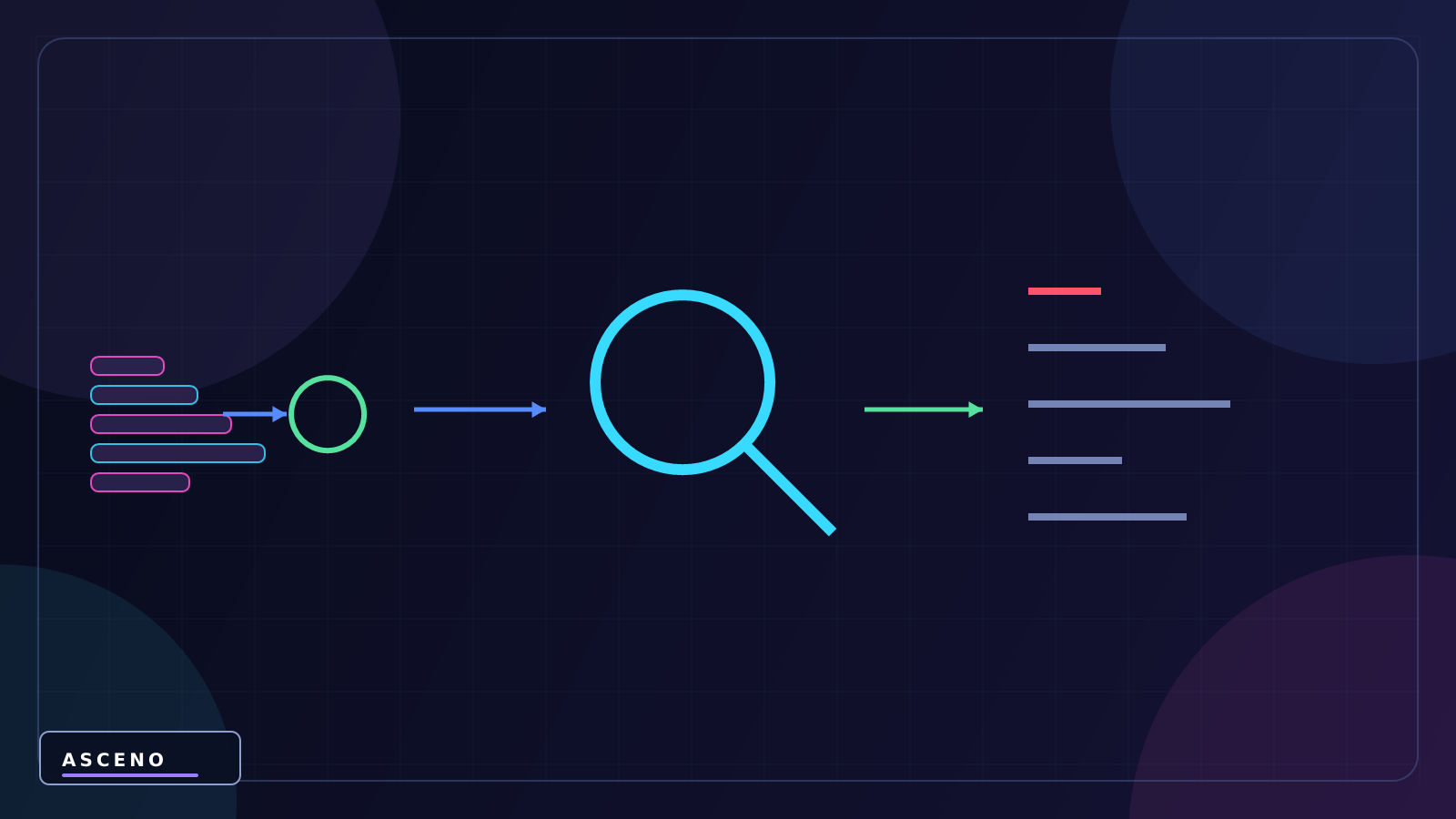
7. Result observation illustration
The Console is not decoration: use it to verify Let the camera read the position after gameplay updates in LateUpdate. If no log appears, check the active object, script compilation, and Console filters before adding more code.
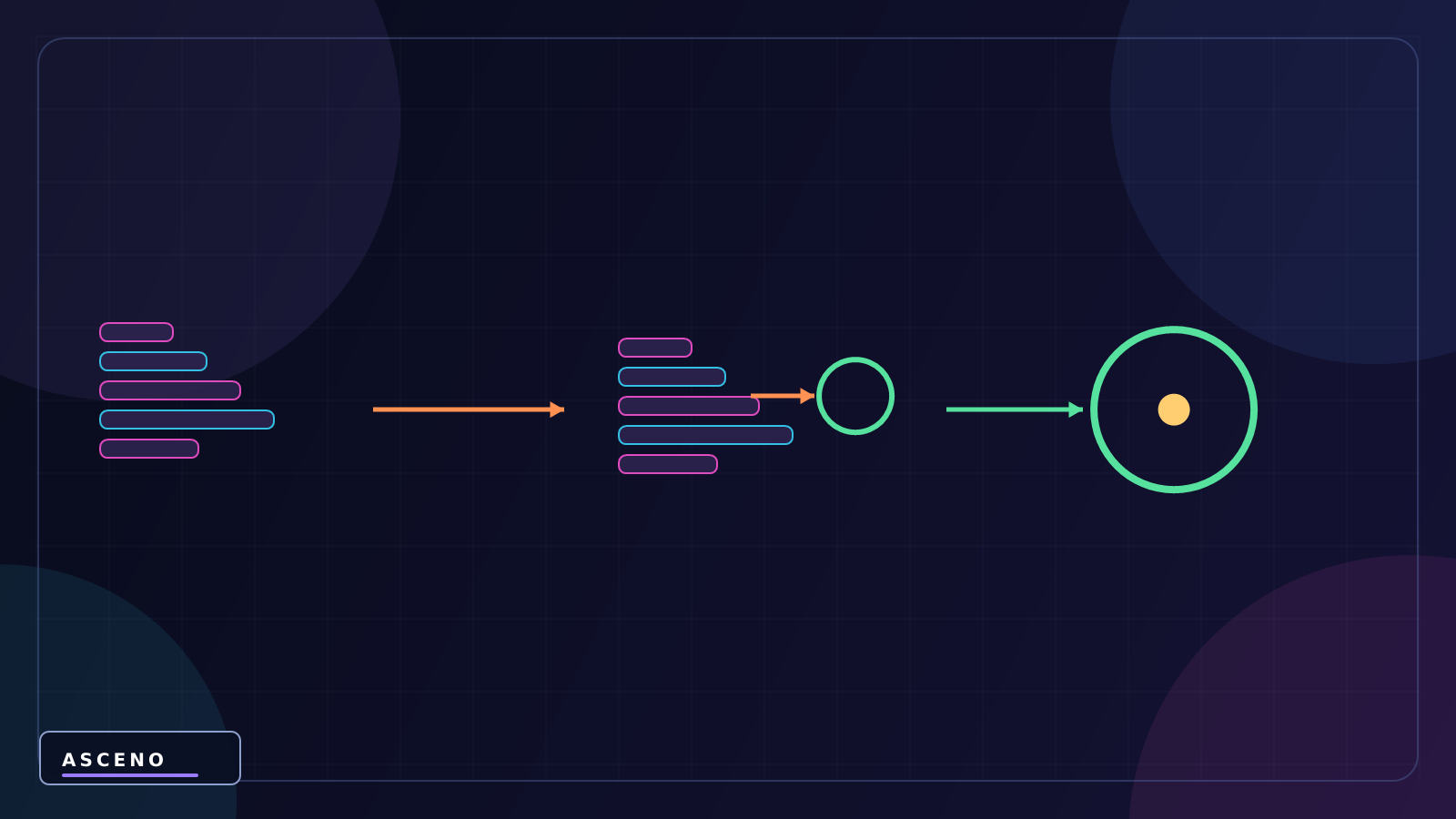
8. Code → state illustration
Do not copy code away from the Scene. Before each line, identify the input object/reference; after each line, identify the state or output that should change.
using UnityEngine;

public class StepAwareMover : MonoBehaviour
{
    [SerializeField] private Rigidbody body;
    private Vector3 input;

    private void Update()
    {
        input = new Vector3(Input.GetAxisRaw("Horizontal"), 0f, Input.GetAxisRaw("Vertical"));
    }

    private void FixedUpdate()
    {
        body.MovePosition(body.position + input.normalized * 4f * Time.fixedDeltaTime);
    }
}
9. Experiment illustration
The pattern is to read input in Update, pass intent to FixedUpdate for Rigidbody movement, and follow the target in LateUpdate. This avoids jitter and frame-rate-dependent behaviour.
- Read input in Update because player interaction arrives with rendered frames.
- Apply Rigidbody velocity or force in FixedUpdate.
- Let the camera read the position after gameplay updates in LateUpdate.
- Run again after reverting to check that the result is reproducible.
- Record the input value, action, result, and reason for the change.
10. Failure → fix illustration
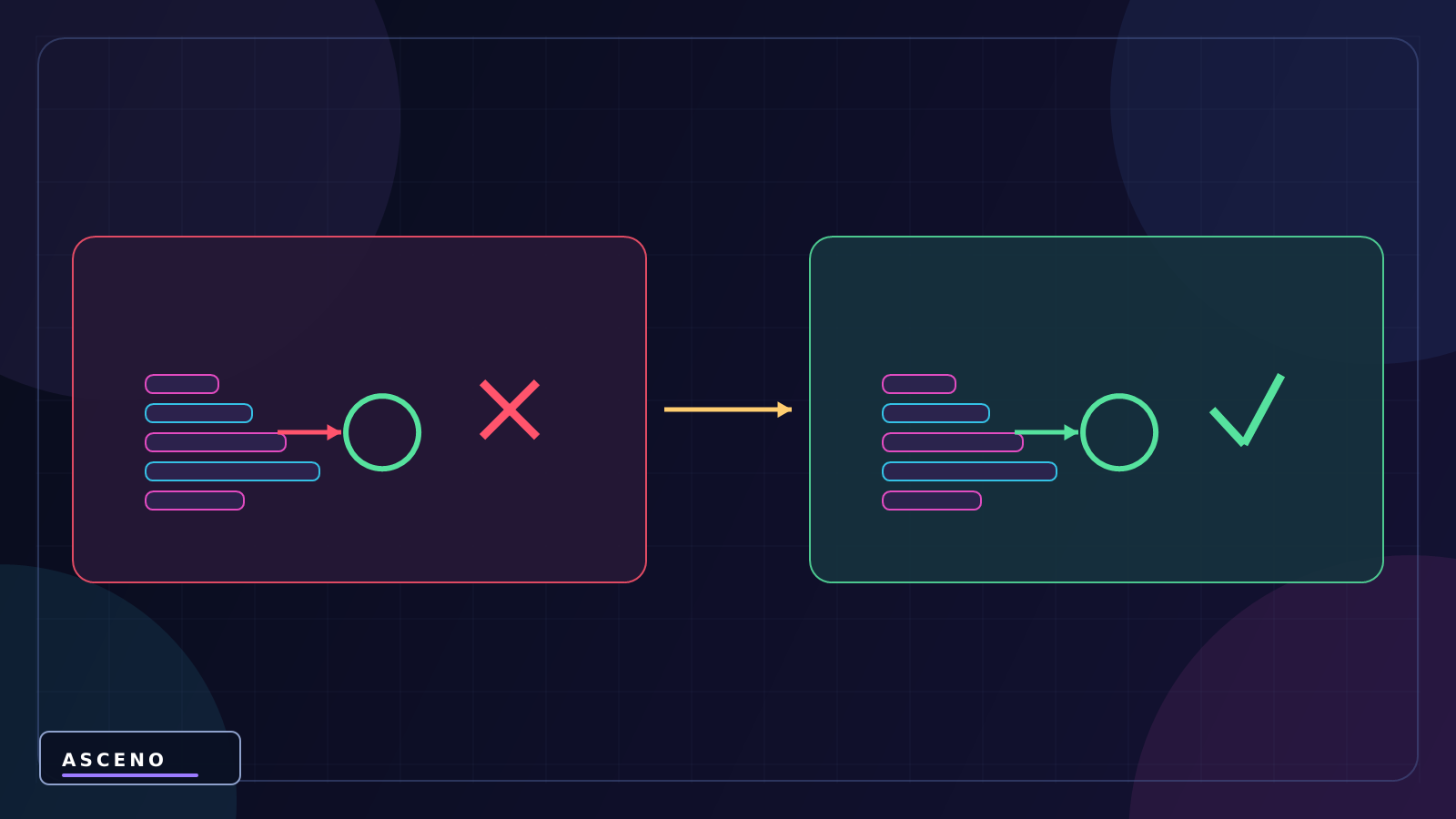
- Selecting the wrong object or asset means a correct edit appears to do nothing.
- Changing several fields at once hides the cause.
- Looking only at the Scene while ignoring the Inspector/Console.
- Skipping verification specific to update fixedupdate lateupdate.
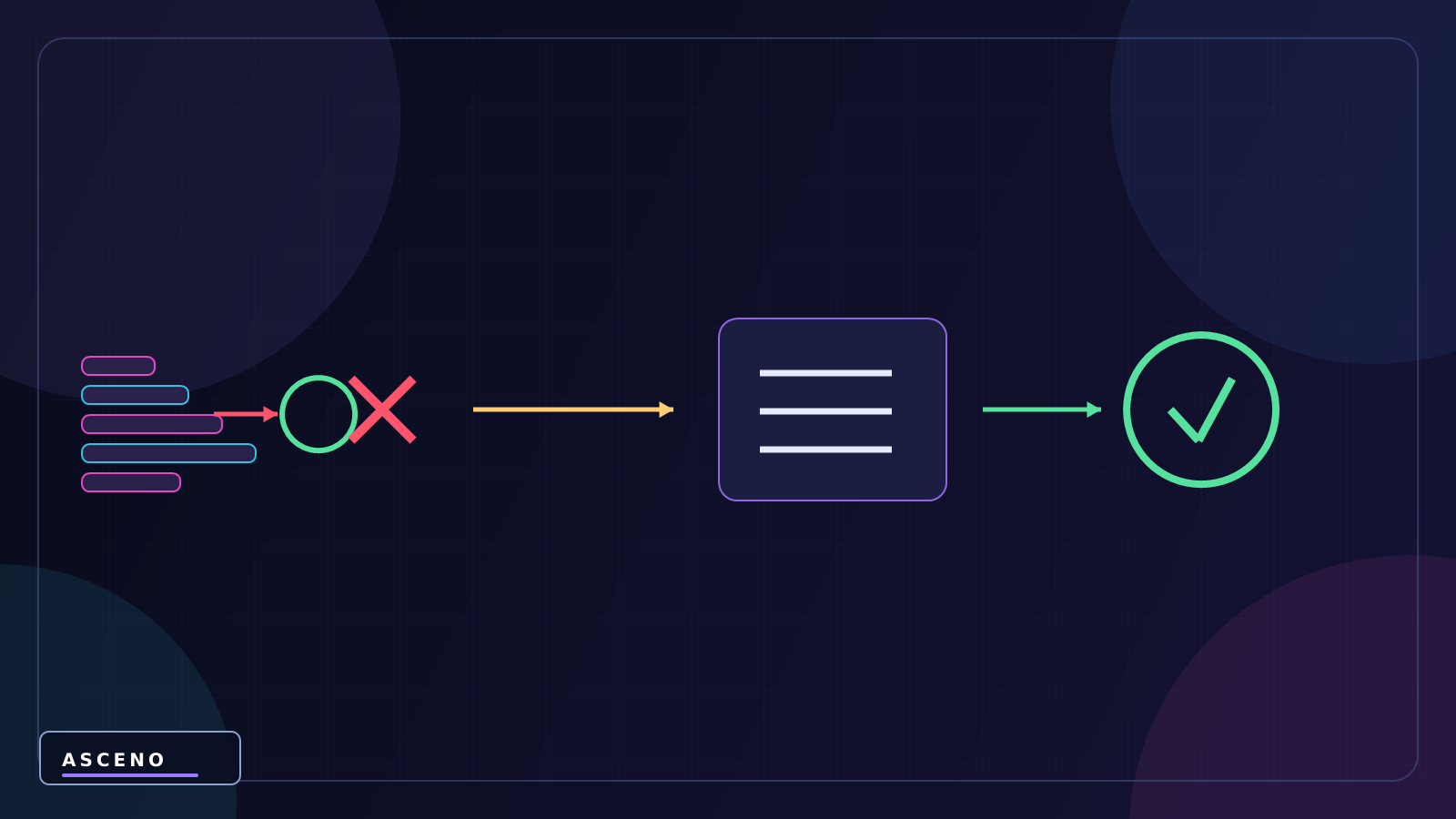
The ASCENO perspective: A good figure must help the reader answer one concrete question. If it does not show what to select, where to look, what to change, or where the result appears, it is not ready for documentation.