
10 Common Unity Beginner Mistakes and How to Fix Them
Beginners repeatedly meet a small family of problems: missing references, mixed 2D/3D systems, Scenes absent from the build, confusing Prefab overrides, broken UI scaling, and missing build assets. A diagnostic process matters more than memorising each error. The article summarises ten issues in a practical check order: Console, Inspector, Hierarchy, layers, Scenes, packages, and target build. Each has symptoms, likely causes, and a verification step.
ASCENO / UNITY DIAGNOSTIC NOTES · 68
10 Common Unity Beginner Mistakes and How to Fix Them
10 lỗi Unity người mới thường gặp và cách sửa
This is a diagnostic lesson, not a list of memorised tricks. Each failure below has a reproducible symptom, a specific place to inspect, and a fix that can be verified.
Learning goals
- Separate compile, reference, lifecycle, physics, Scene, Prefab, UI, and build failures.
- Open the correct window instead of relying on a generic Scene screenshot.
- Reproduce each failure in a small Scene and record evidence.
1. The 10-error map
Treat the ten failures as ten different hypotheses. No generic Scene image or single code line explains them all; each group needs its own evidence.
2. Symptom → diagnostic layer
Read the symptom first, then open the right diagnostic location. If the symptom is not reproduced, do not conclude the cause.
- 01 · Ignoring the Console — A red line exists but the fix is a guess → Window > General > Console; read the first error and stack trace
- 02 · The script does not compile — Play Mode or callbacks do not work → Console and the file/line named by the CS error
- 03 · A reference is missing — NullReferenceException → Inspector of the selected object
- 04 · The object is disabled — The script seems silent while the object exists → GameObject Active and Component enabled
- 05 · 2D / 3D mismatch — A collision or trigger callback never fires → Rigidbody, Collider, and callback suffix
- 06 · Wrong Tag / Layer — CompareTag is false or collision is filtered out → Tag, Layer, and Layer Collision Matrix
- 07 · The Scene is not in the build — LoadScene fails or the build opens the wrong Scene → Build Profile and its Scenes list
- 08 · A Prefab override is hiding the change — The instance and source asset disagree → Overrides in the Inspector
- 09 · The UI is scaled incorrectly — The UI moves off screen at another resolution → Canvas Scaler, RectTransform, anchors, and pivot
- 10 · A package or build asset is missing — A type, namespace, or asset disappears in the build → Package Manager, Console, and output folder
3. Diagnostic decision tree
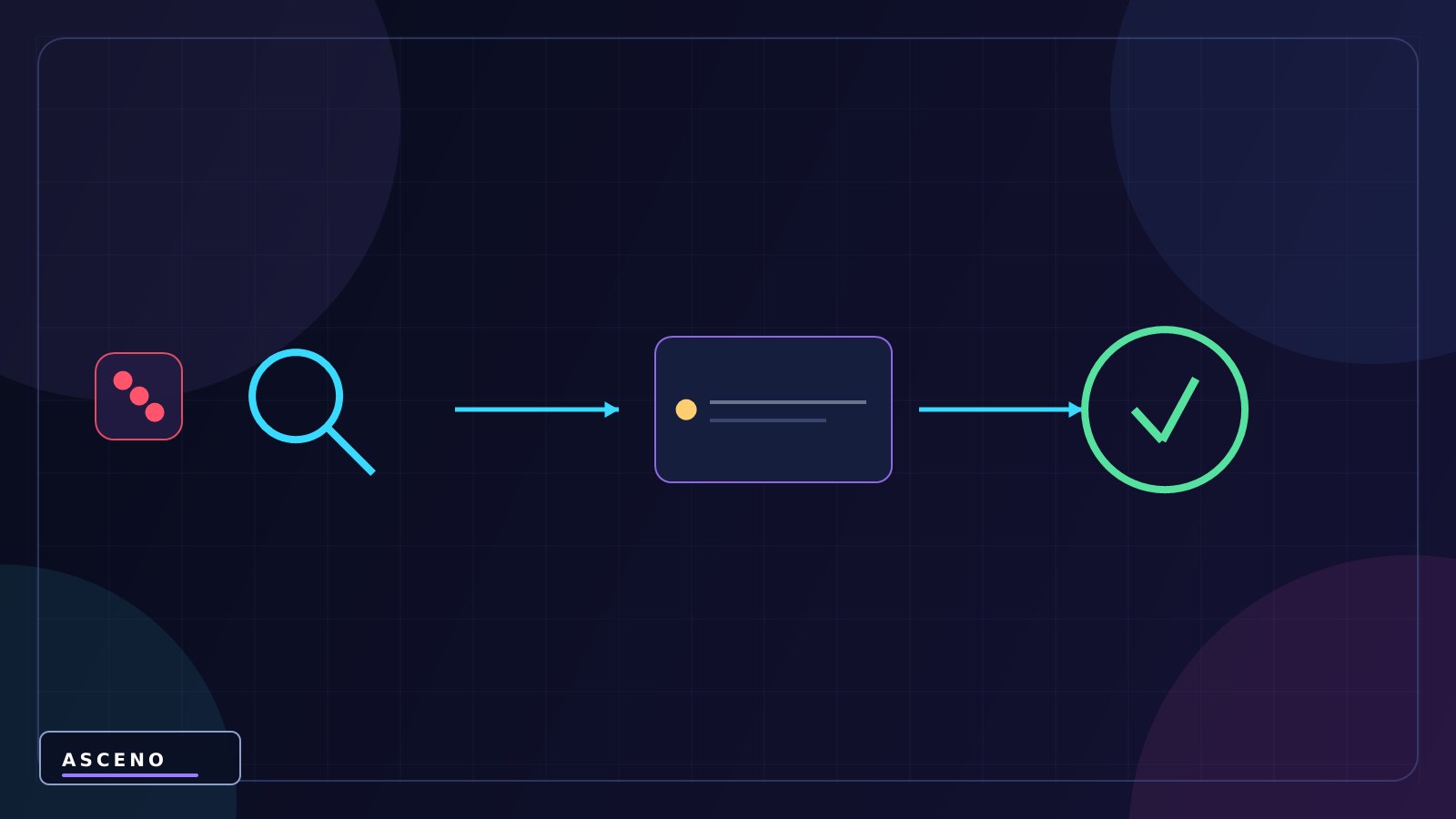
Start from the observed symptom, not from a guess about a line of code. Follow the branch until you have readable evidence.
4. Unity evidence map
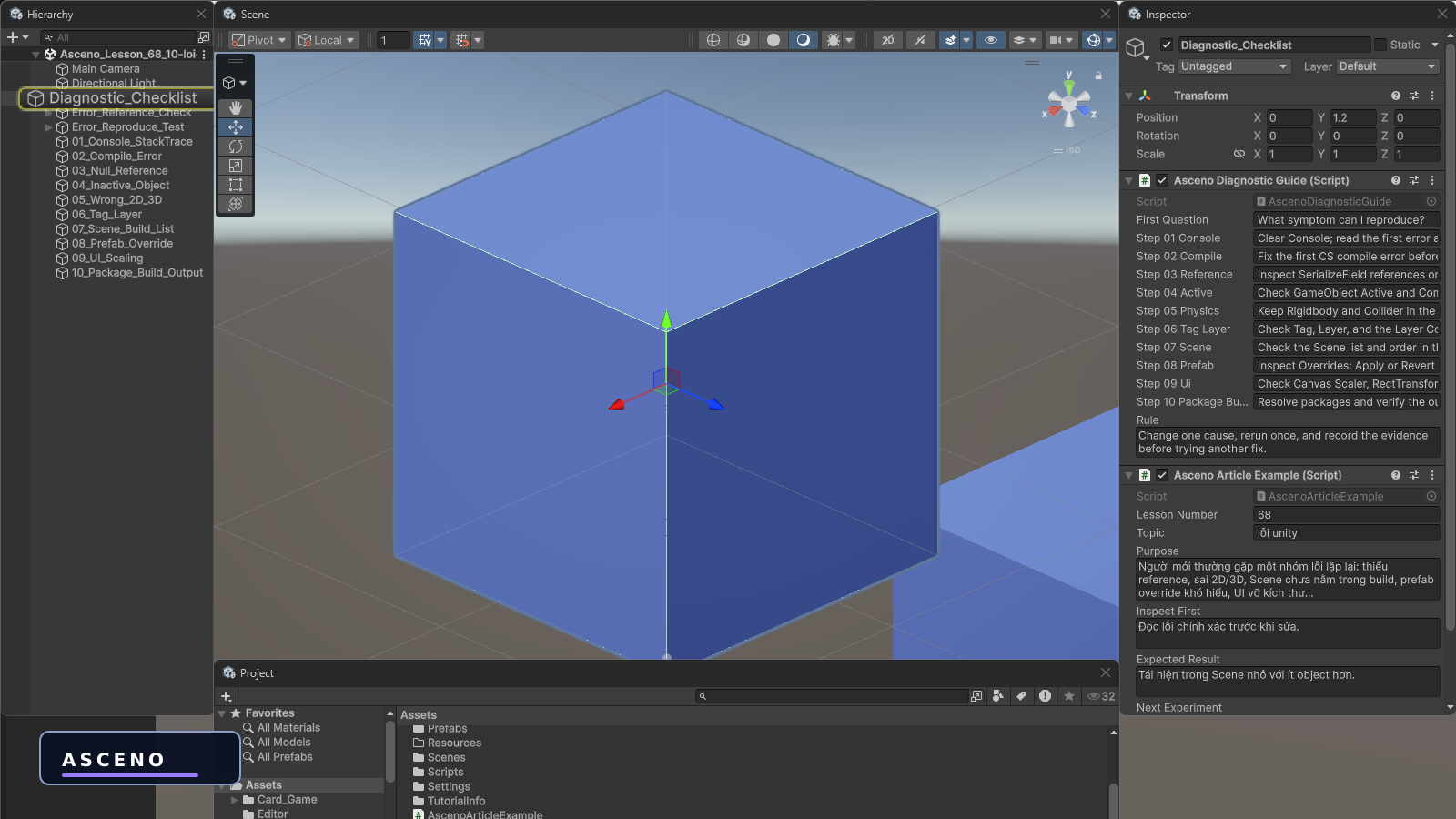
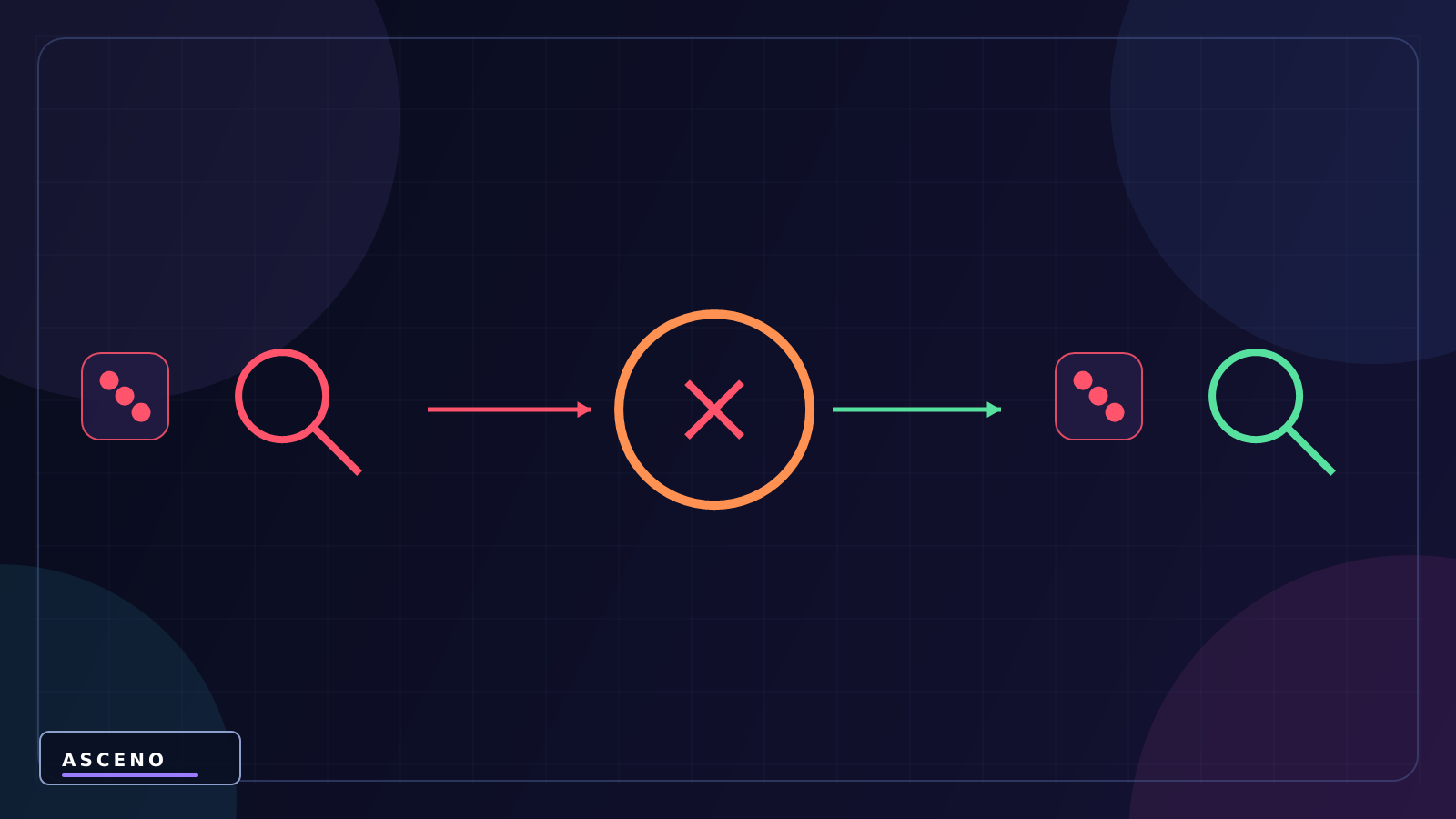
Figure 1 is the real Unity evidence for starting the hands-on work. Figure 4 is a language-neutral diagram of the evidence path: from object, through configuration, to logs and output. The exact window names and actions stay in the text below instead of being locked into the image.
5. Inspect the Hierarchy
- Select the object named by the log or behaviour; its role must be readable in the Hierarchy.
- Check Active on the GameObject and enabled on the script Component.
- For Prefabs, distinguish the Project asset from the Scene instance.
- For Scene/load issues, confirm the object belongs to the current Scene.
6. Inspect the Inspector
- Null reference: find the SerializeField and assign the correct object.
- Physics: keep the Rigidbody/Collider in the same 2D or 3D system and check Is Trigger.
- Tag/Layer: read the real values and the Layer Collision Matrix; do not infer from colour.
- Prefab/UI: inspect Overrides, Canvas Scaler, RectTransform, anchor, and pivot.
7. Read the Console correctly
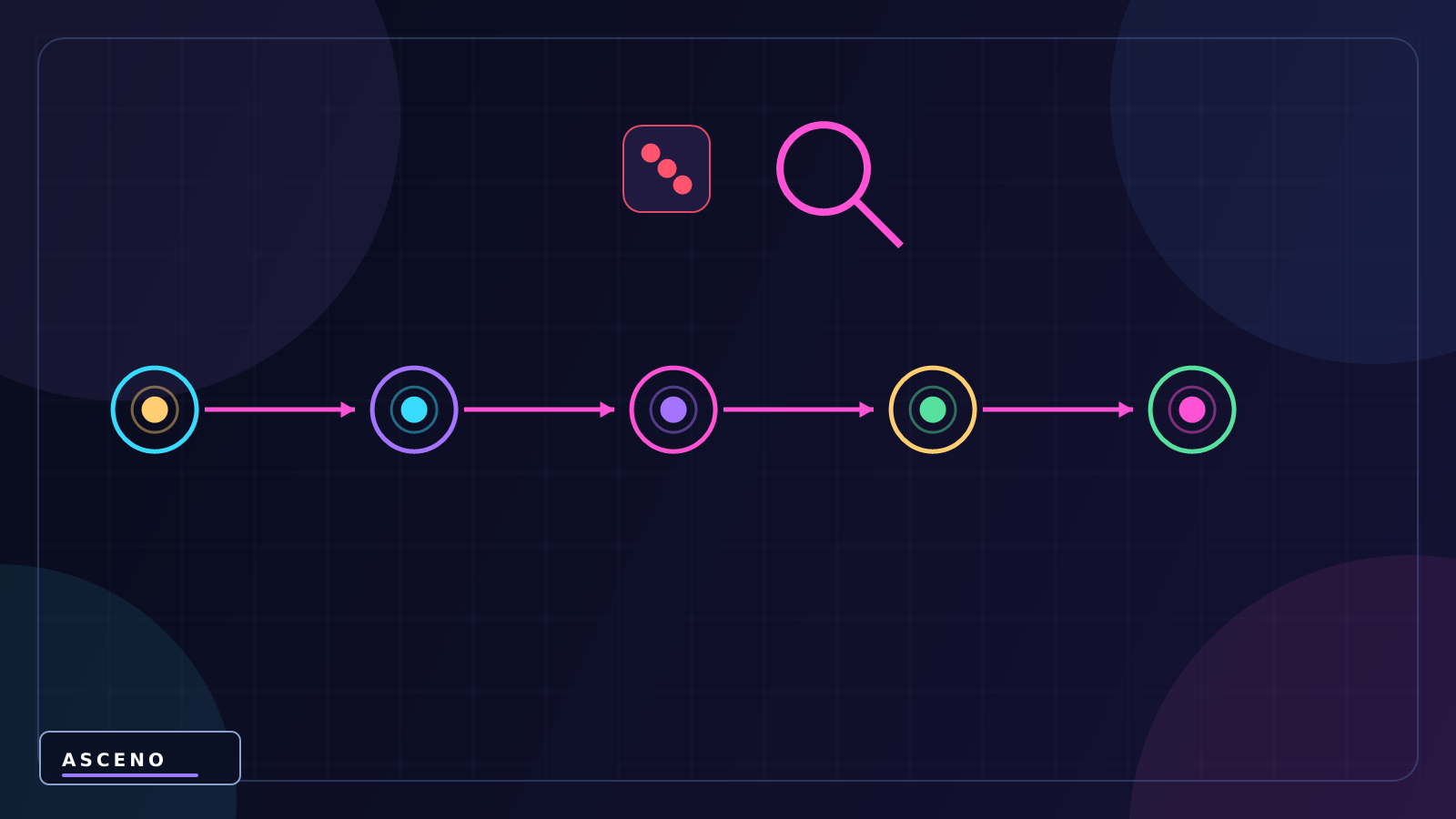
Press Clear, reproduce once, read the first red error, then click it to inspect the stack trace and file/line. Figure 1 shows Unity's native Console; Figure 7 abstracts the observation path from signal to conclusion so the reader can follow it without depending on a language.
8. A code-and-Editor diagnostic order
This order prevents editing gameplay while the script still has compile errors or unassigned references. Code does not replace reading the Inspector and Console.
// Diagnostic order for a Unity failure
1. Clear the Console and read the first error
2. Fix compiler errors before pressing Play
3. Inspect Active, Component, reference, Tag, and Layer
4. Match the 2D/3D physics pair and callback
5. Check the Scene list, Prefab Overrides, and Canvas settings
6. Resolve packages and verify the build output
9. Ten reproducible tests
- 01 · Reproduce “Ignoring the Console”: open Window > General > Console; read the first error and stack trace, change one condition, rerun and record A red line exists but the fix is a guess.
- 02 · Reproduce “The script does not compile”: open Console and the file/line named by the CS error, change one condition, rerun and record Play Mode or callbacks do not work.
- 03 · Reproduce “A reference is missing”: open Inspector of the selected object, change one condition, rerun and record NullReferenceException.
- 04 · Reproduce “The object is disabled”: open GameObject Active and Component enabled, change one condition, rerun and record The script seems silent while the object exists.
- 05 · Reproduce “2D / 3D mismatch”: open Rigidbody, Collider, and callback suffix, change one condition, rerun and record A collision or trigger callback never fires.
- 06 · Reproduce “Wrong Tag / Layer”: open Tag, Layer, and Layer Collision Matrix, change one condition, rerun and record CompareTag is false or collision is filtered out.
- 07 · Reproduce “The Scene is not in the build”: open Build Profile and its Scenes list, change one condition, rerun and record LoadScene fails or the build opens the wrong Scene.
- 08 · Reproduce “A Prefab override is hiding the change”: open Overrides in the Inspector, change one condition, rerun and record The instance and source asset disagree.
- 09 · Reproduce “The UI is scaled incorrectly”: open Canvas Scaler, RectTransform, anchors, and pivot, change one condition, rerun and record The UI moves off screen at another resolution.
- 10 · Reproduce “A package or build asset is missing”: open Package Manager, Console, and output folder, change one condition, rerun and record A type, namespace, or asset disappears in the build.
10. Failure → check location → fix
- 01 · Ignoring the Console | A red line exists but the fix is a guess | Window > General > Console; read the first error and stack trace | Read the exact error, clear old logs, and reproduce
- 02 · The script does not compile | Play Mode or callbacks do not work | Console and the file/line named by the CS error | Fix the first compile error before checking gameplay
- 03 · A reference is missing | NullReferenceException | Inspector of the selected object | Assign the correct object to the SerializeField or add a null guard
- 04 · The object is disabled | The script seems silent while the object exists | GameObject Active and Component enabled | Enable both the object and the Component, then rerun
- 05 · 2D / 3D mismatch | A collision or trigger callback never fires | Rigidbody, Collider, and callback suffix | Keep the physics system and callback family consistently 2D or 3D
- 06 · Wrong Tag / Layer | CompareTag is false or collision is filtered out | Tag, Layer, and Layer Collision Matrix | Check the exact Tag name and Layer pair before changing code
- 07 · The Scene is not in the build | LoadScene fails or the build opens the wrong Scene | Build Profile and its Scenes list | Add the Scene, verify order, and save the profile
- 08 · A Prefab override is hiding the change | The instance and source asset disagree | Overrides in the Inspector | Apply to write back to the asset or Revert to discard the local change
- 09 · The UI is scaled incorrectly | The UI moves off screen at another resolution | Canvas Scaler, RectTransform, anchors, and pivot | Set a reference resolution and anchor to the region that should move
- 10 · A package or build asset is missing | A type, namespace, or asset disappears in the build | Package Manager, Console, and output folder | Resolve the dependency, check the platform, and open the built artifact
The ASCENO perspective: Debugging is not a race to guess. Good game developers create small evidence, eliminate one possibility at a time, and record how to reproduce the result.